Navigation: Features >
Registry


|
Navigation: Features > Registry |
|
|
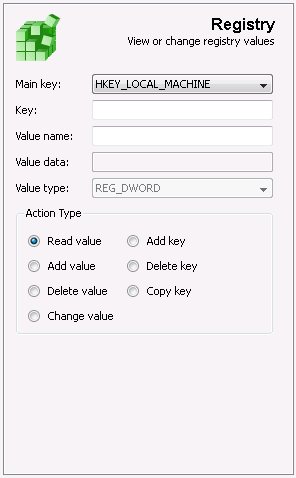
Manipulate the registry on remote hosts.
Main key Specifies the root key that will be affected by the update. The following choices are available:
HKEY_LOCAL_MACHINE (default) HKEY_CLASSES_ROOT HKEY_CURRENT_USER HKEY_USERS
Key The target key under the main key. e.g. to update HKLM\SOFTWARE\SomeProduct\SomeValue First set Main key to HKEY_LOCAL_MACHINE. Then enter software\SomeProduct in the Key field.
Value/Subkey name The target key/value for the update. The field accepts a value name when a value action is selected (e.g. Add value) and a subkey name when a key action is selected (e.g. Add key). This field is not available when Copy key is selected.
Value Data Data to be written to the value specified in the value name field. Only available when Add value or Change value is selected.
Value Type The data type for the value provided in the Value data field. Only available when Add value or Change value is selected May be one of:
REG_EXPAND_SZ REG_SZ REG_DWORD
Action Type Specifies the type of registry update to perform. The following choices are available:
|